
Every App Icon Size You Actually Need (And Why Half of Them Catch Teams By Surprise)
iOS asks for 18, Android for 7, the web for 7 more - 32 PNGs to ship one app on one phone. A practical guide to iOS scale factors, Android density buckets, web favicons and PWA manifests, plus how to generate every size from a single 1024 master in your browser.
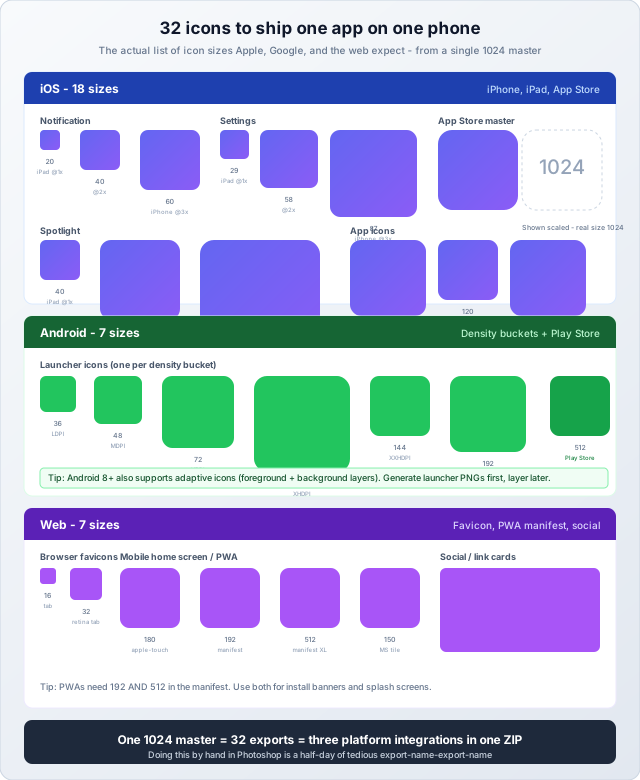
The first time we shipped an app to both the App Store and Google Play, the icon work took the better part of a day. Not the design — the design was done. The day went to exports: 18 iOS sizes for Xcode's AppIcon.appiconset, six Android density buckets plus a Play Store hi-res icon, and then a separate round for the web (favicon, Apple touch, PWA manifest, OG card). It is the kind of mechanical work that quietly eats hours and produces nothing creative. This post is everything we wish we had known going in: what every platform actually expects, why the size lists look so strange, the pitfalls each one hides, and how a browser-based App Icon Generator turns the whole half-day into the 45 seconds it should always have been.
Why So Many Sizes Exist
Mobile and web platforms each evolved on their own. Apple introduced Retina displays in 2010 and standardized on points as a layout unit; pixels became a scale factor on top. Android took a different route — they bucketed devices into density classes (ldpi through xxxhdpi) and let the OS resource loader pick the right asset at runtime. The web inherited bits of both worlds plus its own legacy from Internet Explorer 5 (yes, IE5 — that is where the .ico favicon convention came from).
The reason a modern app needs 30+ icon files is not that any one platform demands all of them. It is that you ship to three ecosystems at once and each ecosystem has its own scale conventions, its own surfaces (notification, settings, home screen, app store), and its own legacy assumptions about what a "correct" icon set looks like. Skipping a size does not crash anything — it just shows a blurry resampled version or, on iOS, a fallback generic icon, which is the kind of polish miss reviewers notice.
The pragmatic minimum vs the complete set
You can ship with fewer icons. Apple will technically accept a single 1024 master and auto-generate the rest at build time using AppIcon.appiconset "Single Size" mode (added in Xcode 14). Android can do similar via the adaptive icon system. But auto-generated downscales — especially aggressive ones from 1024 to 20 px — usually look worse than purpose-rendered exports because the rendering pipeline cannot make per-size hinting decisions. For an app that is being judged by app store screenshots and "first impression" feels, the explicit per-size set is still the right move.
iOS: The 18-Size Maze
iOS has the most sizes because Apple devices span three scale factors (@1x for legacy iPad, @2x for most current iPhones and iPads, @3x for Plus / Pro Max models) and four surface types (App, Spotlight, Settings, Notification), times two device families (iPhone, iPad), plus a hi-res App Store submission. Multiply it out and you land at 18 icons.

iOS surfaces, in plain language
- App icon (60pt iPhone, 76pt iPad, 83.5pt iPad Pro): the one that shows on the home screen. The icon users see most. Exports at @2x and @3x (and @1x for some legacy iPads).
- Spotlight (40pt): when iOS Search shows your app. Smaller and rendered at a tighter visual weight.
- Settings (29pt): in the Settings app's per-app list. Smallest of the in-app surfaces.
- Notification (20pt): when a push or local notification arrives. Tiny — make sure your icon still reads at 20 px before assuming the big version will look fine.
- App Store master (1024 x 1024): the listing in the store. No alpha channel allowed. This is the source-of-truth icon Apple uses to render store cards.
The legibility test at 20 px
The single most useful sanity check on an iOS icon is: open the 20 x 20 export at 100% zoom. If you cannot tell what the icon is supposed to be, the design has too much detail and will read as mush on Notification overlays. We have seen otherwise-beautiful icon designs reduced to "a colorful blob" at notification size. The fix is usually to simplify the design or use a different mark for the small sizes — Apple actually allows this via separate Icon-Notification.png entries in the asset catalog.
Common iOS icon mistakes
- Alpha channel on the 1024. The App Store rejects icons with transparency. Use opaque background, even if it is white. Apple explicitly calls this out.
- Designing a rounded-rect mask yourself. Don't. iOS applies its own corner-radius mask to every icon. Submit a flat square; the OS rounds it.
- Same image at every size. The 20 px version often needs simpler internals than the 1024 — design hinting matters for tiny renders.
- Forgetting the iPad Pro App icon at 83.5pt (167 px @2x). Easy to miss because it is the only "half-point" size; Xcode will warn you with a yellow triangle.
Android: Density Buckets, Not Pixel Sizes
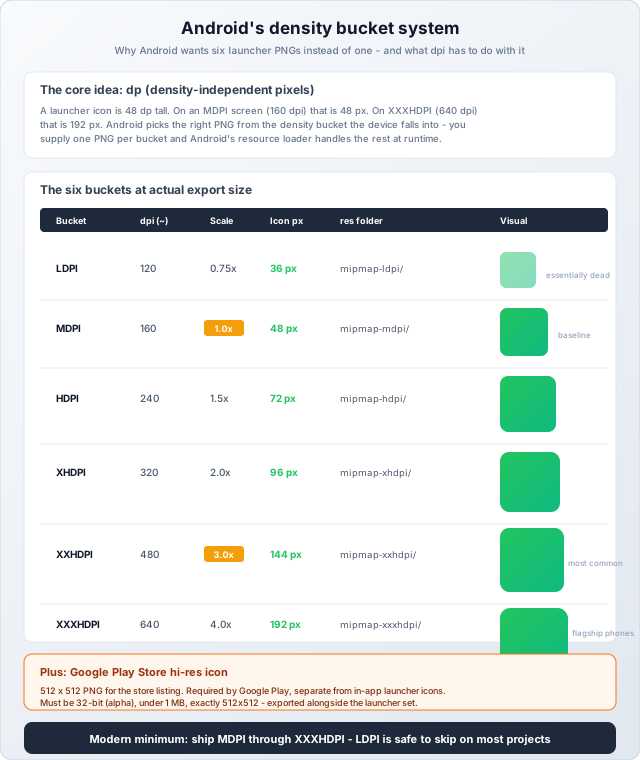
Android's model is fundamentally different from iOS. Instead of asking for one icon at multiple pixel sizes per device, Android asks for one icon per density bucket and uses the OS resource loader to serve the right one to each phone at install time. The buckets are: LDPI (120 dpi), MDPI (160 dpi, baseline), HDPI (240 dpi), XHDPI (320 dpi), XXHDPI (480 dpi), XXXHDPI (640 dpi).
The dp unit and why it matters
Android UI is measured in dp (density-independent pixels). A launcher icon is 48 dp. On a 160-dpi (MDPI) screen, 48 dp = 48 px. On a 640-dpi (XXXHDPI) screen, 48 dp = 192 px. By supplying one icon per bucket, you let the OS pick the right resolution for the user's hardware without doing any runtime scaling in your app.
For modern apps you can safely skip LDPI — devices in that bucket (older entry-level Android phones from 2014 and before) are essentially gone from active use. We typically ship MDPI through XXXHDPI and let LDPI fall back to MDPI; this saves ~15% of icon disk space with no real-world impact.
The launcher icon path: mipmap, not drawable
Android has two resource folder types: drawable/ and mipmap/. Launcher icons go in mipmap-*, not drawable-*. The reason is technical: drawables can be density-stripped at build time on a per-build basis, but the launcher icon needs to render at a different density than the device's native one (when the user switches launchers or zooms). The mipmap directory tells the OS to keep all densities of that icon in the APK so the launcher can pick the right one. Google's docs cover this but it is one of the most-missed details in indie Android development.
Adaptive icons (Android 8+)
Since Android 8 (API 26), launcher icons can be adaptive: two layers (foreground + background) that the OS can mask into circles, squircles, squares, or whatever shape the device manufacturer prefers. Samsung, Pixel, OnePlus, and Xiaomi all use different masks. If you only ship a flat PNG launcher, you get a "legacy" icon — usually a small icon inside a white circle with a visible boundary, which looks unpolished on modern devices.
The full adaptive icon workflow involves creating an XML asset that references the two layers. Our tool generates the launcher PNGs you need as the foundation; the adaptive XML and layered PNGs are a follow-up step you do in Android Studio's "Image Asset" wizard once the base icons are in place. For most teams, the standard launcher PNGs are sufficient to launch.
The Google Play Store hi-res icon
One more icon, separate from the in-app launcher set: a 512 x 512 PNG you upload to the Play Console for the store listing. It must be 32-bit with an alpha channel, under 1 MB, and exactly 512 x 512. The store listing icon shows up in search results, the install banner, and review notifications — it is the icon that drives installs, so render it from the cleanest possible source. (Yes, this is the opposite alpha rule from iOS's App Store icon. Yes, we know.)
Web: Favicons, Apple Touch, PWA, and Social
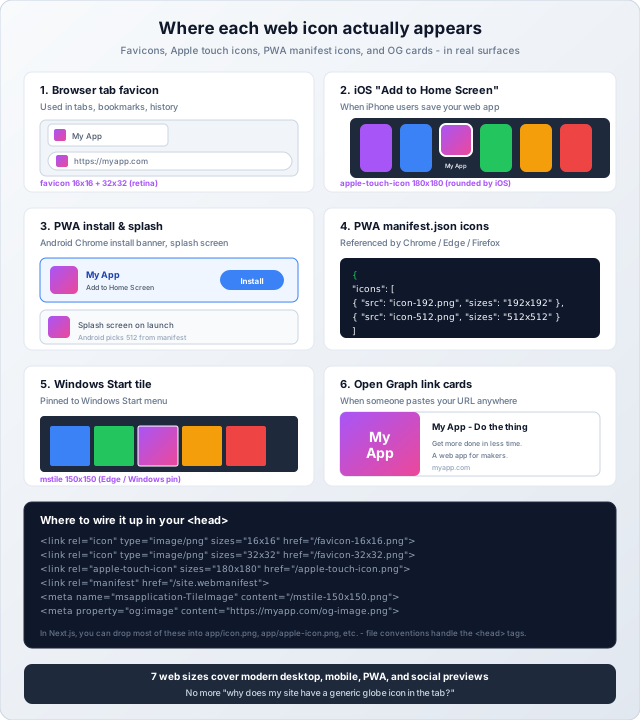
The web has the smallest icon set (7 sizes in our generator) but the most surfaces — and the most legacy. A modern web app needs icons that look right in:
- Browser tabs and bookmark bars (favicons at 16 and 32 px).
- iOS "Add to Home Screen" (Apple Touch icon at 180 px).
- PWA install banners and splash screens on Android (manifest icons at 192 and 512 px).
- Windows Start menu tiles (mstile at 150 px).
- Link previews when someone shares your URL in Slack, Twitter, Discord, etc. (Open Graph at 1200 x 630).
The forgotten ones
- Open Graph (1200 x 630). This is the rectangular image, not a square icon. It is the single most impactful icon you ship for marketing: it is what people see when your URL gets shared. Many teams ship a plain square icon here and lose all the design real estate. Our generator outputs this size from the same master image; depending on your brand you may want a richer custom OG card with a tagline (we cover this in the tool notes).
- Apple Touch icon (180 x 180). Without it, iOS uses a screenshot of your page when users tap "Add to Home Screen." The screenshot is usually unflattering and unrecognizable next to native app icons.
- Android Chrome 192 + 512. Both are required by the PWA manifest spec. 192 drives the install banner; 512 drives the splash screen on Android. Skipping the 512 means a tiny pixellated splash, which is one of the most visible polish failures in a PWA.
Wiring it all up in HTML
For a traditional HTML app, your <head> ends up with a handful of <link> and <meta> tags pointing at each icon. For a Next.js app (13+), the framework's file convention system can auto-generate most of the tags: drop an icon.png at app/icon.png, an apple-icon.png at app/apple-icon.png, and an opengraph-image.png at app/opengraph-image.png, and Next builds the right markup automatically. Less to maintain, fewer "wait, did I update the favicon path" bugs.
Designing a Source Icon That Survives Every Size
Before any export pipeline matters, the icon design itself has to be export-friendly. The rules we have refined across a half-dozen launches:
- Master at 1024 x 1024. All major platforms accept downscaling from 1024; nothing currently requires more. (8K masters are wasted bytes for icons.)
- Center the focal element with breathing room. Roughly 10-15% padding on each side. iOS and Android both round the icon to varying degrees; corners get cropped. Design the recognizable element inside a safe circle, not flush with the edges.
- Use 2-4 colors max. Lots of small detail and gradient banding becomes mud at 20 px. The icons that hold up best are flat, high-contrast, and have one clear focal element.
- Test the 16 and 20 px versions early. If your icon does not work at favicon and notification size, the design needs to change before you spin up 30 exports.
- Opaque background for the App Store master. Even if your in-app icon has transparent corners, the 1024 master needs to be a solid rectangle for App Store submission.
- No text smaller than ~96 px source-equivalent. Text in icons rarely survives below XHDPI. If your brand requires text, do a separate "wordmark" version for OG cards and use a textless variant for app launchers.
How the Generator Solves the Mechanical Part
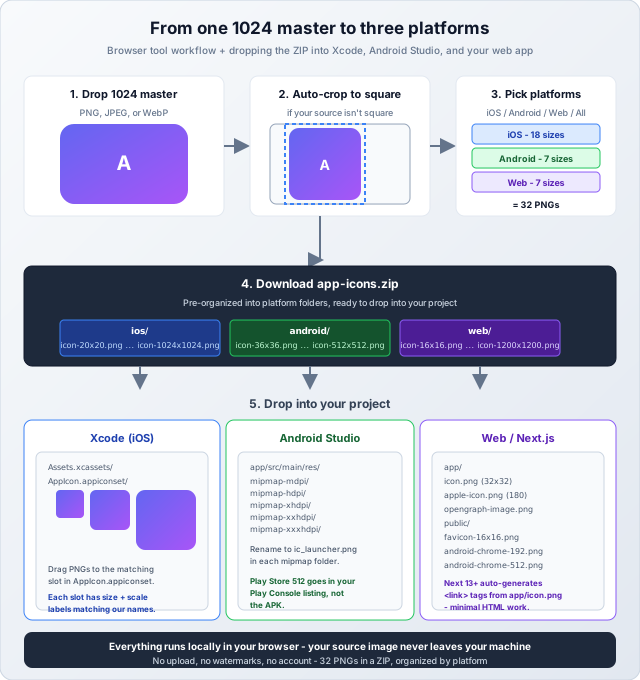
The design work is on you. The mechanical exports — 32 PNGs, each at the right pixel size, organized into platform folders, ready to drop into Xcode, Android Studio, or your web app — is what the App Icon Generator handles.
What the tool actually does
- Accepts PNG, JPEG, or WebP up to any size — 1024 x 1024 is recommended for the cleanest downscale.
- Auto-detects non-square sources and prompts you to crop to a centered square (using
react-image-cropwith a locked 1:1 aspect). The cropped region is what gets used for every output; the original file is never modified. - Renders device mockups live — see how your icon will look on an iPhone home screen, an iPad, an Android phone, a browser tab, and an App Store listing card before you generate. This catches "looks great in Figma, looks bad on a real device" surprises early.
- Generates all 32 PNGs via canvas with high-quality resampling (
imageSmoothingQuality: "high"). Each size is rendered from the source independently — no double resampling, no "downscale of a downscale" quality loss. - Platform filtering: generate just iOS, just Android, just Web, or all three together. Useful if you are only shipping to one platform first.
- Packages everything into a single ZIP organized into
ios/,android/, andweb/folders, with PNGs named by pixel dimension (icon-180x180.png) so they sort intuitively. - 100% local in your browser. The source image never leaves your machine. No upload, no servers, no account, no watermarks.
Integrating the ZIP Into Your Project
Xcode (iOS)
Open your Xcode project, find Assets.xcassets, click AppIcon. You will see slots for each iOS size with labels like "iPhone App iOS 7-15 60pt @2x". Drag the corresponding PNG from the ios/ folder of our ZIP into each slot. The size in the slot label (e.g. "60pt @2x") maps directly to a pixel size (60 x 2 = 120 px) — our file icon-120x120.png goes in that slot. Repeat for each slot. Build the app; iOS will use the right icon for each surface.
Android Studio
Open your Android project's app/src/main/res/ folder. You should see mipmap-mdpi/, mipmap-hdpi/, etc. Drop the matching launcher PNG into each folder and rename it to ic_launcher.png (the default name Android expects). For modern Android (8.0+), you may also want to use Android Studio's "Image Asset" wizard to create an adaptive icon from your launcher PNG; the wizard will produce the foreground/background layers and the necessary XML files.
The Play Store 512 hi-res icon is uploaded separately in the Play Console under Store presence → Main store listing → App icon. It does not go in the APK.
Web (Next.js, vanilla HTML, or other)
For Next.js (13+), use the file convention system: drop icon.png at app/icon.png (we recommend the 32 px version), apple-icon.png at app/apple-icon.png (180 px version), and opengraph-image.png at app/opengraph-image.png. Next.js handles the <head> markup automatically. For the PWA manifest icons (192 and 512), drop them in public/ and reference them from your manifest.json.
For vanilla HTML, drop all the favicons into your public/ or root directory and add the <link> tags shown in the infographic above to your <head>. The Open Graph image needs a full URL in the og:image meta tag (not a relative path) — many social services do not resolve relative URLs.
Common Pitfalls Even With a Generator
- Uploading a tiny source. If your source is 256 x 256, every export larger than that is an upscale, and upscaled icons look soft. Use a 1024 master or larger.
- Forgetting to remove transparency for the 1024 App Store icon. Our generator preserves your source's alpha channel by default. If you are submitting to the App Store, design your 1024 master with an opaque background.
- Not testing on a real device. Editor mockups are useful for design iteration but the real test is the home screen on an actual phone. Always sideload before submitting.
- Mixing up the 1024 versions. iOS App Store wants opaque, no alpha. Google Play wants 512 with alpha. Web Open Graph wants 1200 x 630 (rectangle, not square). Different rules per surface.
- Generating once, then redesigning the icon. Re-generate from the new master rather than editing individual sizes — you cannot keep 32 icons consistent by editing each one.
Honest Limitations
The tool generates raster PNGs from a raster (or vector-converted) source. It does not:
- Generate the Android adaptive icon XML for you. The launcher PNGs are the foundation; the adaptive wrapper is a one-time step in Android Studio. (We may add this in a future update; for now it is a known follow-up.)
- Render a custom Open Graph card with text overlays. The OG export is your icon, centered, on the source background — fine for many cases, but for marketing-heavy OG cards you will want a separate design tool.
- Apply iOS or Android rounded-corner masks to the output. By design — the OS applies its own masks. Submit flat squares; let the platform round them.
- Vectorize raster sources. If your icon is line art and you want SVG output, you need a vector source. Our tool downsamples; it does not upsample beyond the source resolution.
Best Practices Checklist
- Master at 1024 x 1024, with the focal element centered and 10-15% safe padding.
- Flat design, 2-4 colors, no small text. Test at 16 px before generating the full set.
- Opaque background for the iOS App Store 1024; alpha is fine for the Android Play Store 512.
- Generate all three platforms in one pass rather than running the tool three times.
- Use Next.js file conventions for web icons if you are on Next 13+; otherwise wire up the
<link>tags in<head>manually. - Put launcher icons in
res/mipmap-*, notres/drawable-*, on Android. - Test on a real device, on a dark home screen background, before submitting.
Wrapping Up
App icon size proliferation looks insane until you understand why each surface exists. iOS @1x/@2x/@3x exists because Apple devices span three pixel densities. Android density buckets exist because the OS resource loader picks per device. Web favicons, Apple Touch, PWA manifest, OG cards each live in a real surface — tab, home screen, install banner, link preview. Skipping any of them is visible polish loss.
The good news is that none of it requires creative work after the design is done. It is mechanical export — 32 PNGs at exact pixel sizes, organized into platform folders, wired into the right project locations. The browser-based App Icon Generator turns the half-day exporting marathon into a 45-second drop-and-download. Your icon design still has to be good; the rest is just a button click.