
Working With Sprites in Godot 4: Nuances, Pitfalls, and Best Practices
Godot's 2D pipeline looks simple but has a lot of subtle traps - texture filter scoping, pixel snap, region_rect vs AtlasTexture, y_sort layering, and SpriteFrames batching. A practical field guide for shipping clean 2D in Godot 4.
Godot 4's 2D pipeline is one of its real strengths — it is fast, flexible, and the API is mostly intuitive. But it is also full of small choices that look identical on the surface and behave very differently in practice. We have helped enough teams ship Godot 2D games to know which of these nuances bite hardest, and where the official docs leave subtle gaps. This is the field guide we wish existed when we started: the pitfalls, the best practices, and the small settings that make the difference between a game that ships clean and one that wobbles, blurs, or chokes the GPU.
Picking the Right Sprite Node
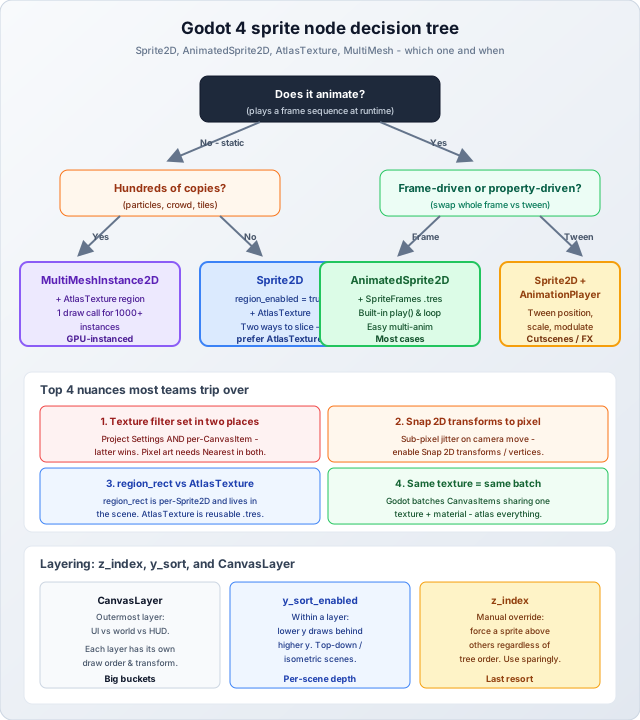
Godot 4 gives you several ways to draw a sprite, and the differences matter. Sprite2D is the basic single-frame node. AnimatedSprite2D wraps a SpriteFrames resource and gives you built-in playback (play, stop, loop). AtlasTexture is not a node at all — it is a texture that points at a region of another texture, which you can hand to any node that takes a Texture2D. And then there is MultiMeshInstance2D, which most teams forget about until they hit a wall trying to render thousands of identical sprites.
The choice that catches everyone
The most common mistake we see is using Sprite2D.region_enabled = true with a region_rect set in the Inspector, instead of using an AtlasTexture resource. Both work and look identical at runtime, but they have very different consequences for your project:
- region_rect lives on the node, in the scene file. If you have 50 enemy variants that all show different parts of the same atlas, you have 50 scene files each with their own region rect baked in. Change the atlas layout and every scene needs to be opened and re-edited.
- AtlasTexture .tres lives in its own resource file. The 50 enemies reference the same atlas via 50 small
.tresfiles, but those.tresfiles are generated once and reused. Change the atlas layout and you regenerate the AtlasTextures, and every scene just picks up the change.
Best practice: prefer AtlasTexture resources for anything reused across scenes. Use region_rect only for one-off sprites that will never be reused.
When to use MultiMeshInstance2D
If you are rendering hundreds or thousands of essentially identical sprites — particles, crowd extras, falling leaves, a tile chunk — and they do not need per-instance scripting, MultiMeshInstance2D is the right tool. It is GPU-instanced: one draw call regardless of how many instances. We have used it for a falling-leaves background effect with 4000 instances and it cost less than a single regular Sprite2D would have for one instance. The trade-off is less per-instance flexibility (no individual node tree, no scripts attached), so it is best for visual-only sprites driven from one place.
Texture Filtering: The Setting You Set Twice
This is the single most common pitfall in Godot 2D, and it is sneaky. Texture filtering in Godot 4 is set in two places:
- The project default in Project Settings → Rendering → Textures → Canvas Textures → Default Texture Filter.
- A per-CanvasItem override on each node, via the
texture_filterproperty (which defaults to "Inherit" — meaning use the parent's setting, ultimately falling back to the project default).
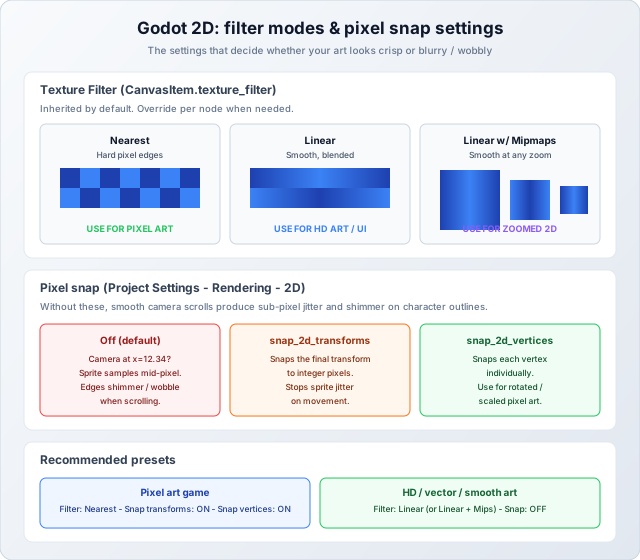
If you are making a pixel art game and your sprites look blurry, the cause is almost always: project default is set to "Linear" (the default for new projects) and the node is set to "Inherit." The fix is to either change the project default to "Nearest" (best for pure pixel art projects) or override texture_filter on the parent of your pixel art content to "Nearest."
Filter mode quick reference
- Nearest: No interpolation between texels. Crisp, hard pixel edges. Use for pixel art and any sprite that must stay pixel-perfect.
- Linear: Bilinear interpolation. Smooth, blended. Use for HD/vector art, UI, and anything that scales smoothly.
- Linear with Mipmaps: Linear plus pre-generated downsampled versions. Use when sprites are scaled significantly (cameras zooming, parallax with size variation). Costs ~33% more VRAM per texture.
- Nearest with Mipmaps: Rare combination, mostly useful for pixel art that gets scaled down (e.g. far parallax layers).
The Pixel Snap Trap
Even with the right filter mode, pixel art games in Godot 4 often have a subtle wobble or shimmer when the camera moves. The cause: sub-pixel transforms. If your camera is at position x = 12.34, every sprite ends up rendered at a fractional pixel offset, and the GPU samples between texels — even with Nearest filter, this can produce visible shimmer because the rounding flips back and forth as the camera moves.
The fix lives in Project Settings → Rendering → 2D → Snap:
- snap_2d_transforms_to_pixel: Snaps the final transform of each CanvasItem to integer pixels. The fix for most pixel art games — sprites stop wobbling on camera scroll.
- snap_2d_vertices_to_pixel: Snaps every vertex to a pixel. Use in addition to the above if you have rotated or scaled sprites that still shimmer.
For HD/smooth art, leave both OFF — snapping will make your smooth animations look stuttery instead of fluid. Best practice: pick a project-wide style and lock these settings in early. Mixing pixel art and HD art in one game is possible but requires careful per-camera or per-CanvasLayer overrides.
Layering: y_sort, z_index, and CanvasLayer
Godot 2D has three independent ways to control draw order, and they interact in specific ways. Getting this wrong is how you end up with a player that sometimes draws behind a tree they are standing in front of.
- CanvasLayer is the outermost bucket. Each CanvasLayer has its own draw order and its own transform. Use it for big-picture separation: world (layer 0), HUD (layer 1), pause overlay (layer 100). Things in different CanvasLayers cannot interfere with each other's draw order.
- y_sort_enabled (on a Node2D) sorts its children by their final y position — lower y draws behind higher y. This is the right tool for top-down or isometric games where characters need to occlude each other based on world position. Set it on the parent of your game world and forget about z_index for everything inside.
- z_index is a manual override on a single CanvasItem. Use it sparingly — it forces a sprite above or below others regardless of tree order or y_sort. Good for "always on top" effects (a damage number, a glowing outline); bad as a general-purpose layering tool because it scales poorly.
Best practice: pick y_sort for world depth, CanvasLayer for big buckets, and use z_index only when those two cannot express what you need.
The Import Lifecycle (and the .import File Mystery)
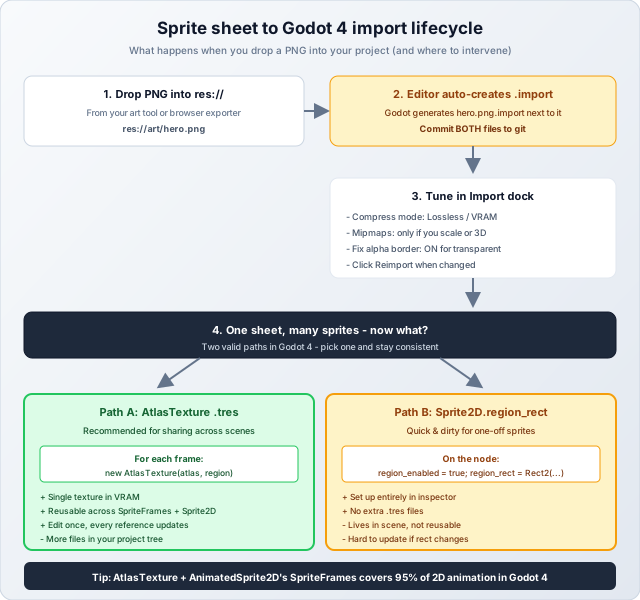
When you drop a PNG into a Godot project, the editor does several things behind the scenes. Knowing this lifecycle saves you from a lot of "why did my texture change" surprises.
Things to know about .import files
- Always commit them to git. The .import file holds your import settings (compression, mipmaps, fix alpha border). Without it, every team member who pulls the project gets default settings, which may not match yours. We have seen real bugs where one developer had mipmaps enabled and another did not, and assets looked subtly different in their builds.
- Reimport when settings change. Editing the .import file or changing settings in the Import dock requires clicking Reimport before the change takes effect. This catches teams off guard the first time.
- Compress mode matters. "Lossless" stores PNG as-is; "VRAM Compressed" produces a GPU-compressed texture (BPTC, ETC2, ASTC depending on platform). For pixel art, use Lossless. For HD/smooth art destined for desktop or modern mobile, VRAM Compressed gives a big memory win with minor quality loss.
- Fix alpha border: Turn this ON for any texture with transparent edges. It pre-bleeds RGB into transparent pixels so linear filtering does not produce dark halos. Costs nothing at runtime.
SpriteFrames: How Animations Actually Work
An AnimatedSprite2D is driven by a SpriteFrames resource. SpriteFrames is essentially a dictionary of animations, where each animation has a list of frames (each frame being a Texture2D — usually an AtlasTexture pointing at a region of your sprite sheet) and an FPS.
The right pattern: one PNG sprite sheet → one AtlasTexture per frame → one SpriteFrames resource holding all animations for a character → one AnimatedSprite2D per character instance. This keeps everything sharing the same source texture, which means everything batches into one draw call.
The Images to Atlas tool exports directly to Godot format, which produces the AtlasTexture region data you can map to a SpriteFrames resource via a small import script. For straight Godot atlas import, see the AtlasTexture docs.
Common SpriteFrames pitfalls
- FPS mismatch: If you exported your sprite sheet at 24 FPS but set the SpriteFrames animation to 30 FPS, your character moves 25% faster than the source. Always match.
- Loop flag forgotten: Idle and walk animations need
loop = true; attack and jump animations usually do not. The default is true; one-shot animations need it explicitly turned off. - Mixing source textures: If half your animation frames come from one sheet and half from another, you break batching. Keep one character on one sheet whenever possible.
Modulate, self_modulate, and Why Tinting Sometimes Breaks Batching
Every CanvasItem in Godot has two color tints: modulate (inherited from the parent) and self_modulate (only this node). They look identical but propagate differently. Use modulate on a parent to tint a whole group; use self_modulate to tint just one node without affecting children.
One subtle gotcha: changing modulate is essentially free, but custom shaders that depend on it can break batching if not designed carefully. If you are writing a custom CanvasItemMaterial, prefer reading from the built-in COLOR varying rather than a uniform — uniforms force one batch per unique value, while varyings come through the vertex stream and stay batched.
Performance: When 2D Goes Slow in Godot
Godot 4 is a fast 2D renderer, but it is not magic. Here is what we have profiled as the most common 2D performance traps:
- Too many unique textures = too many draw calls. Same as Unity: atlas your sprites. We covered this in depth in Reducing Draw Calls with Texture Atlases.
- Too many CanvasItems with custom materials. Each unique material breaks the batch. If you need a glow shader, apply it to one parent CanvasItem if possible, not 100 children.
- Heavy shader on screen-fill quads. A complex fragment shader covering the whole viewport is expensive on mobile/integrated GPUs even if there is only one of them.
- Too many AnimatedSprite2D in tree. Each one updates per-frame. For background ambient animations (e.g. flickering torches), consider one shared AnimationPlayer driving multiple Sprite2D nodes via tweens, rather than one AnimatedSprite2D per torch.
- Hundreds of identical sprites = use MultiMeshInstance2D. Particles, swarms, falling debris — instancing wins by orders of magnitude.
Best Practices Checklist
- One texture filter mode per project. Set it as the default in Project Settings, override only when mixing styles.
- Snap 2D transforms ON for pixel art, OFF for HD.
- Prefer AtlasTexture .tres over Sprite2D.region_rect for anything reused.
- Atlas your sprites. One PNG per character or per scene, not one PNG per frame.
- Commit .import files to git.
- Use y_sort for world depth, CanvasLayer for big-picture buckets, z_index sparingly.
- Match SpriteFrames FPS to the FPS you used during export.
- Profile on your target hardware, not just in the editor.
How Browser Atlas Tools Fit In
Godot's editor can pack textures itself, but the workflow is heavier than a quick browser tool: import each loose PNG, configure each one, build them into AtlasTextures by hand or via a plugin. For artists iterating on character animation, that loop is too slow. The browser-based atlas tool on this site exports directly in Godot's expected format, so the artist drops sprites in, downloads a PNG and JSON, and the engineer runs a one-off script that creates AtlasTexture .tres files for each frame. From there, building a SpriteFrames resource is a 30-second editor task or a tiny EditorScript.
The same applies to splitting an existing sprite sheet into individual frames for editing or repacking — see the Sprite Sheet Splitter tool. Local-first, no upload, fast iteration.
Honest Limitations
This guide covers Godot 4. Godot 3's 2D pipeline is similar but the texture filter setting lives in different places, the Snap settings have different names, and SpriteFrames behaves slightly differently around looping. If you are still on Godot 3, the principles transfer but the menu paths do not.
Also: every project is different. The "best practices" here are defaults that work for most teams; your specific game may need different choices. The point is to know which settings exist, what they do, and what trade-offs you are making — not to follow a checklist blindly.
Wrapping Up
Godot 4 is a great 2D engine, but the small choices add up. Get texture filter and pixel snap right early so you are not chasing visual bugs later. Use AtlasTexture for anything reused. Set up layering once with y_sort + CanvasLayer instead of fighting z_index per node. Atlas your sprites. Profile on hardware. Commit your .import files. Do these and most of the 2D problems we see teams struggle with simply do not appear.