
Why Sprite Atlases Matter for Unity Mobile Games (and How to Build Them Fast)
Mobile GPUs hate texture binds. Here is exactly why a Sprite Atlas can take a Unity 2D game from 38 fps to a steady 60 on mid-range Android, what to choose for ASTC vs ETC2, and how I Love Sprites slots into the workflow.
If your Unity 2D mobile game is spiking the CPU, draining batteries fast, or sitting at 40 fps on anything older than a flagship phone, the single highest-leverage change you can make is almost always the same: pack your sprites into a Sprite Atlas. We have shipped enough mobile titles to be sure of this — every time we have profiled a sluggish 2D game on a mid-range Android device, draw calls and texture binds were at the top of the frame budget. This guide walks through why atlases are so much faster on phones specifically, the texture format choices that actually matter for iOS and Android, and how the browser-based Images to Atlas tool fits into the pipeline so artists can iterate without a Unity project open.
Why Mobile is Brutal on Sprite-Heavy Scenes
Desktop GPUs forgive a lot. A modern discrete card can chew through hundreds of texture binds per frame and never break 16.6 ms. Mobile is a different world: tile-based deferred renderers (TBDR) on iOS, less driver headroom on Android, shared memory bandwidth between CPU and GPU, and active thermal throttling all combine to turn "many small draw calls" into your single biggest performance problem.
In Unity specifically, every SpriteRenderer or UI Image that uses a different texture than the previous draw triggers a state change: bind a new texture, possibly a new material, possibly break batching. On desktop this might cost you a fraction of a millisecond and you would never notice. On a mid-range Android phone running OpenGL ES 3, the same operation can cost 10×–30× more in driver overhead, and it scales linearly with how many unique textures you reference per frame.
The math, made concrete
In our profiling sessions on a 2020-era mid-range Android (Snapdragon 700-class), one of our internal 2D test scenes with ~120 unique sprite textures was running at 38 fps with about 6.2 ms of CPU frame time spent on rendering submission alone. Packed into a single 2048×2048 atlas, the same scene jumped to a stable 60 fps with 1.4 ms CPU rendering time. Same art, same shaders, same scene graph — just one texture instead of 120. The thermal behavior was equally important: the device stayed cool over a 20-minute play session instead of throttling after 8.
Sprite Sheet vs Sprite Atlas: Unity's Vocabulary
Unity uses these terms in slightly specific ways, and it is worth being precise. A sprite sheet in Unity is typically a single texture imported with Sprite Mode set to Multiple, which you slice manually or via metadata in the Sprite Editor. A Sprite Atlas is a separate asset (Assets → Create → 2D → Sprite Atlas) that references sprites and packs them at build time, with per-platform settings like format, max size, and compression. Both reduce draw calls; the Sprite Atlas asset adds variant support (low/high-resolution swap), build-time packing, and — critically for mobile — per-platform overrides exposed in one place.
For a small mobile game, a single packed sprite sheet is often enough. For anything larger, the Sprite Atlas asset gives you the flexibility to ship a 1024×1024 atlas to low-end devices and a 2048×2048 atlas to flagships, all from the same source sprites. We recommend the Sprite Atlas asset for any project with more than ~50 sprites or any plan to support a wide device range.
Why Atlases Cut Draw Calls So Aggressively
Unity's 2D renderer batches sprites that share the same texture and material into a single draw call. Without an atlas, two adjacent sprites with different textures = two draw calls minimum, plus the texture bind cost between them. With an atlas, those same sprites become two quads in one batch — the GPU samples different regions of the same texture, but never has to switch which texture is bound. Multiply across an entire HUD plus a populated game scene, and the difference compounds quickly.
The SRP Batcher (used in URP) and dynamic batching both depend on shared materials and textures to do their work. An atlas is what makes them effective in 2D — without one, every sprite breaks the batch.
Choosing a Mobile-Friendly Texture Format
The texture format you pick matters as much as the fact that you packed an atlas at all. The wrong format can either eat all your VRAM (RGBA32 everywhere) or shred your art quality (ETC1 RGB on a translucent character sprite). Unity's importer exposes per-platform overrides so you can pick the right format for iOS, Android, and your editor build separately — which is exactly what you should do.
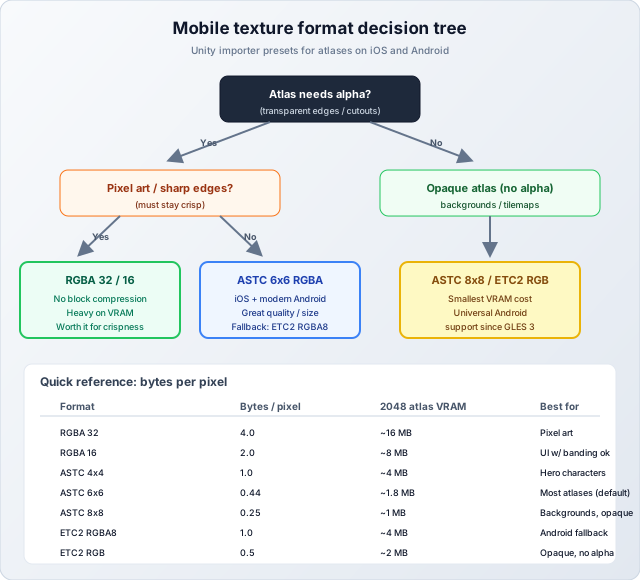
For modern iOS (A12 Bionic and newer, which covers iPhone XS and up) and modern Android (anything with Android 6+ and OpenGL ES 3.1 or Vulkan), ASTC is the right default. ASTC supports variable block sizes, which means you can dial quality vs size per atlas: ASTC 4×4 for hero characters that need pixel quality, ASTC 6×6 for most gameplay sprites, ASTC 8×8 for backgrounds and UI panels where lower fidelity is invisible at typical viewing distance.
For older Android (the 5–10% of users on devices from before ~2017), you need a fallback. Unity handles this through format groups: set ASTC as primary with ETC2 RGBA8 as fallback, and Unity will ship both in the bundle and pick the right one at runtime based on device capability.
Format choices we use as defaults
- Hero / character atlases: ASTC 6×6 RGBA on mobile, BC7 in the editor for QA. Strikes the right balance: ~1.8 MB for a 2048 atlas with alpha.
- UI atlases: ASTC 6×6 RGBA. UI artwork is often gradients and rounded shapes that hide block artifacts well.
- Backgrounds / tilemaps (no alpha): ASTC 8×8 RGB or ETC2 RGB. Big size win, no visible quality loss for opaque imagery.
- Pixel art: RGBA32 with Filter Mode = Point. Yes, it is heavy on VRAM (~16 MB for a 2048 atlas), but block compression destroys the crisp edges that pixel art depends on. Keep these atlases small (1024 max).
The Workflow: From Loose Sprites to a Mobile-Ready Asset
Here is the pipeline we use day-to-day. The browser-based atlas tool handles the packing step, and Unity handles the engine-side import and per-platform format selection.
Step 1: Pack outside Unity for fast iteration
The Sprite Atlas asset packs at build time inside Unity, which is great for the final build but slow when you are iterating on art. Packing outside Unity in a browser tool means an artist can drop new frames, see the packed result instantly, and hand off a single PNG + JSON to engineering — no Unity project required. This is especially useful for indie teams where the artist may not have a working Unity install at all.
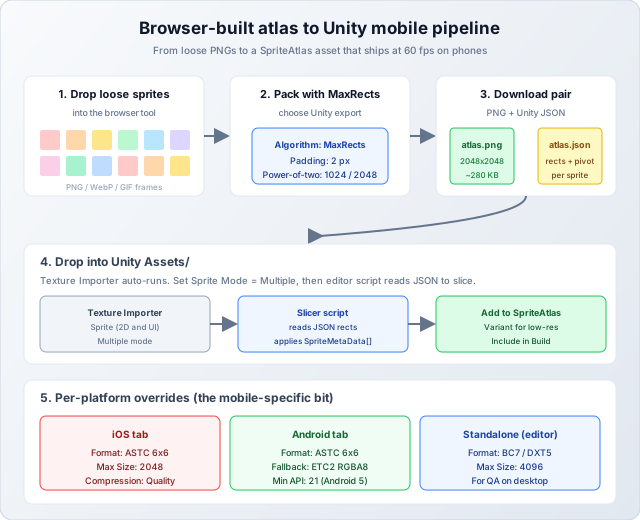
In Images to Atlas, the workflow is: drop the loose PNGs onto the page, choose MaxRects as the algorithm (best density for mixed sprite sizes), set padding to 2 pixels, enable power-of-two output, and pick Unity as the export format. The tool runs entirely in the browser (no upload), packs locally, and gives you a downloadable PNG plus a Unity-shaped JSON describing each sprite's rect and pivot.
Step 2: Import the texture in Unity
Drop the PNG into Assets/. In the Inspector, set Texture Type to Sprite (2D and UI) and Sprite Mode to Multiple. Apply. The texture is now ready to be sliced — but rather than slicing by hand in the Sprite Editor, use a small editor script that reads the JSON we exported and applies SpriteMetaData[] to the texture. We covered this pattern in detail in How to Create Unity-Ready Sprite Sheets from Video; the same script works for atlas imports.
Step 3: Add the texture to a Sprite Atlas asset
Create a Sprite Atlas asset (Assets → Create → 2D → Sprite Atlas). Add the imported sprites to the Objects for Packing list. Now open the per-platform override tabs and set:
- Default tab: Max Size 4096, Format Automatic, Compression High Quality.
- iOS tab: Override checkbox ON, Format ASTC 6×6, Max Size 2048.
- Android tab: Override checkbox ON, Format ASTC 6×6, Max Size 2048. Set ETC2 RGBA8 as the fallback in the project's graphics settings for older devices.
Make sure Include in Build is checked. The atlas will be packed at build time and shipped as the platform-appropriate format.
Step 4: Reference sprites by name, not by atlas
Once the atlas is built, your code and prefabs continue referencing individual sprites the same way they always did — Unity transparently resolves them through the atlas at runtime. You do not have to change any SpriteRenderer.sprite assignments or Image.sprite references. The atlas is purely an optimization layer between your assets and the GPU.
Variants: Shipping Two Resolutions for the Price of One
This is where Sprite Atlas earns its keep on a wide device range. A Variant atlas takes a master atlas and produces a downscaled version (e.g. 0.5×) automatically. You then ship both: the full-resolution master for flagship devices, and the variant for low-end. Unity picks the right one at runtime based on a quality setting you control.
To set this up: create a second Sprite Atlas, set its Type to Variant, and assign your master atlas as the source. Set Scale to 0.5. Now you have two atlases — a 2048 version and a 1024 version — built from the same source sprites. In your quality settings or via script, point low-end devices at the variant. We have shipped puzzle games with this setup and it routinely cuts VRAM in half on cheap Android tablets without any visible quality loss at their native resolution.
Common Mobile Pitfalls and How to Avoid Them
- Forgetting per-platform overrides: Unity's "Automatic" format on Android is conservative and often picks ETC2 even when ASTC is available. Always explicitly override per platform.
- Atlases that are too big for the device: A 4096×4096 atlas will silently downsample on devices with a 2048 max texture size cap, often producing blurry results. Cap your atlases at 2048 unless you know your floor device supports more.
- Mixing pixel art and smooth art in one atlas: They need different filter modes (Point vs Bilinear). Keep them in separate atlases so you can set Filter Mode per atlas.
- Forgetting Read/Write Enabled: Leave it OFF for atlases on mobile. Enabling it doubles memory usage by keeping a CPU-side copy of the texture you almost certainly do not need at runtime.
- Including unused sprites: Sprite Atlas packs everything in the Objects for Packing list whether your scenes use it or not. Audit your atlases periodically and remove sprites that are no longer referenced.
- Trying to use one giant atlas for everything: Multiple smaller atlases (one per scene or feature) load on demand and keep memory pressure lower. One mega-atlas resident in memory for the whole game wastes RAM on assets the current scene is not using.
Measuring the Impact (Do This!)
Before you take our word for any of this, measure on your target hardware. Unity's Frame Debugger shows draw call counts and what is breaking batching. The Profiler (with the device connected over ADB or built natively on iOS) shows real CPU rendering time. Pick your floor device — usually the cheapest phone you have committed to supporting — and capture frames before and after atlasing. The numbers should be obvious; if they are not, something else is wrong (a custom shader, transparent overdraw, or per-frame allocations) and you should fix that before assuming atlases are the problem.
We have found that the gap between editor performance and on-device performance is the #1 source of "we shipped and it runs badly" surprises in mobile Unity projects. The editor is running in IL2CPP (or Mono), with full PC GPU power, and most importantly without thermal pressure. Always profile on hardware, ideally during a 10+ minute play session so thermals kick in and reveal the real picture.
Limitations and Honest Caveats
Sprite Atlas is not magic. It will not help if your bottleneck is fragment shader cost (overdraw, expensive per-pixel effects), CPU-side game logic, or garbage collection from per-frame allocations. It will not help if every sprite in your scene needs a unique material (custom shader per sprite). And on extremely low-end devices, the texture format choice can matter more than the atlas — a perfectly atlased scene rendered with RGBA32 textures will still die on a 1 GB RAM Android phone.
The fix in those cases is profiling first, atlasing as part of a holistic optimization pass, not as a silver bullet. That said, for the standard "2D mobile game with too many sprites" problem, atlases are the highest-impact single change available.
Wrapping Up
Sprite atlases are the price of entry for shipping a Unity 2D game on mobile. The win is consistent across every project we have profiled: lower draw calls, lower CPU frame time, more stable thermals, longer battery life, and the headroom to add more art before performance degrades. Pack your sprites in a browser tool for fast artist iteration, hand off the PNG + JSON to engineering, set up per-platform overrides on a Sprite Atlas asset, and ship it. If you take one optimization away from this guide, let it be that one.