
Converting Video to a Sprite Sheet: A Practical Guide to Frame Extraction (And Why It's a Pain)
Every method of turning a video into a game-ready sprite sheet has a tax: FFmpeg's flags, Photoshop's price tag, custom scripts that rot, sketchy upload sites. A breakdown of what actually happens during extraction, why every classic approach hurts, and how to skip the pain entirely with a browser-based converter.
Worked MP4 example: four frames you can check
Download our 0.4-second H.264 MP4 sample, or select Try an example in the MP4 and GIF to sprite sheet converter. It contains four numbered 64 × 64 frames at 10 FPS.
- Use 10 FPS, 100% scale, and a maximum of four frames. Extract the full clip without cropping.
- Select Grid, two columns, two rows, left-to-right order, zero padding, and a sheet limit of 256.
- Generate the sprite sheet. Download its PNG and Generic JSON frame data.
- Check that the sheet is 128 × 128 and contains four 64 × 64 regions at (0,0), (64,0), (0,64), and (64,64). Each frame lasts 100 ms.

Compare with the MP4 reference PNG and reference frame coordinates. This tiny clip makes frame order and dimensions easy to verify; it does not benchmark long-video performance. Decoder versions may produce small color differences.
Continue with a Unity, Godot, or Phaser sprite animation starter project, or split the generated sheet into individual PNG frames.
"Just turn this clip into a sprite sheet" sounds like a five-minute task. The first time we did it for a real game project, it took an afternoon — between fighting FFmpeg flags, packing the extracted frames by hand, and re-exporting twice because the engine wanted a different JSON shape. After enough cycles like that, we built our own tool to make it stop hurting. This post walks through what video-to-sprite-sheet conversion actually involves, the five common ways teams do it (and exactly why each one is painful), and how a browser-based converter like our Video to Sprite Sheet tool collapses the whole pipeline into a 45-second drop-and-export.
What Conversion Actually Involves
Before we look at methods, it helps to be precise about what "convert a video to a sprite sheet" means. There are three distinct stages and most pain comes from gluing them together:
- Frame extraction. Decode the video and pull individual frames. You have to decide which frames (every one? every Nth? sampled at a target FPS?) and what format (PNG with alpha? JPEG?). Codec quirks matter here — webcam recordings, screen captures, AE renders, and phone clips all behave differently.
- Packing. Take those individual frames and arrange them on a single texture (or a small set). Choose a layout (packed, row, grid), set padding, hit a power-of-two boundary if your engine cares.
- Metadata generation. Produce a JSON (or XML, or .tpsheet, or whatever) that tells the game engine where each frame lives on the sheet. Different engines want different shapes.
None of these steps are individually hard. The pain is that almost every traditional method makes you do them in different tools, hand off files between them, and re-do work when something changes upstream. Change the FPS? Re-extract, re-pack, re-export metadata.
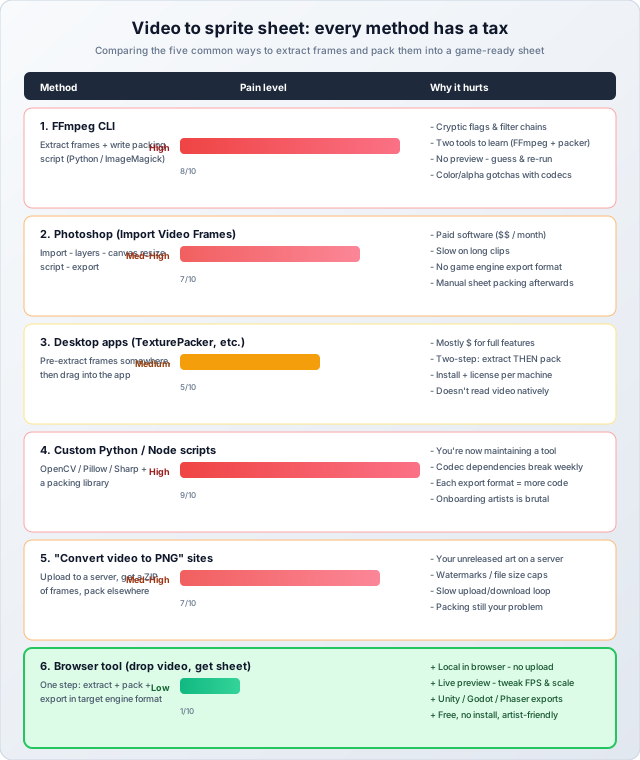
Method 1: FFmpeg from the Command Line
FFmpeg is the Swiss Army knife of video processing. It is also the tool that everyone reaches for first, and the one whose flags they immediately have to look up.
The basic incantation to extract frames at 12 FPS is something like:
ffmpeg -i input.mp4 -vf "fps=12,scale=512:-1" -pix_fmt rgba frame_%04d.pngThat gets you a folder of PNGs. You still need to:
- Pick which frames to keep if the video has too many.
- Pack them into a single sheet (FFmpeg's
tilefilter can lay frames in a grid but does no real packing — it always wastes space and never produces metadata). - Generate engine-shaped JSON describing each frame's rect on the sheet.
- Re-run from scratch when you want to tweak FPS, scale, or layout.
The pain: the flag combinations are notoriously unintuitive. We have watched experienced engineers spend an hour figuring out why a transparent WebM came out with a black background (you usually need -pix_fmt rgba and the right codec, but the exact recipe varies). There is no preview, so you discover problems only after the export finishes. And it is a single-purpose extractor — packing and metadata are separate problems you solve with separate tools.
When it makes sense: server-side build pipelines that run unattended, or batch jobs over hundreds of clips. For interactive iteration on a single animation, it is the wrong tool.
Method 2: Photoshop's "Import Video Frames to Layers"
Photoshop has built-in support for importing a video as a stack of layers (File → Import → Video Frames to Layers). Each frame becomes a layer; you can then resize the canvas, lay them out into a grid manually, and export as PNG.
This works, sort of. You get a visual workflow with a real preview. You also get:
- A monthly Adobe subscription, if you do not already have one.
- Painfully slow imports for clips longer than a few seconds (Photoshop is not a video tool).
- Manual canvas math: 36 frames at 256×256 needs a 6×6 grid on a 1536×1536 canvas, and you arrange that yourself.
- Zero engine-aware metadata. Unity needs JSON describing each frame's rect; Photoshop will not give you that. You either write it by hand or run a separate slicer in your engine.
- Hard cap on how many frames Photoshop will import (usually 500-ish before it gets unhappy).
The pain: the price tag plus a workflow that turns a 30-second task into a 15-minute one. Acceptable for a one-off; brutal as a regular pipeline.
Method 3: Desktop Apps (TexturePacker, Aseprite, etc.)
Tools like TexturePacker, Aseprite, and others are excellent at the packing stage — TexturePacker specifically has best-in-class MaxRects and engine-format export. The catch is that none of them read video natively. You have to extract frames first (back to FFmpeg or Photoshop), then drag the resulting PNG sequence into the desktop app, then pack and export from there.
The pain:
- Two-step workflow: every change upstream means re-extracting and re-importing.
- Most full-featured options are paid software with per-machine licenses.
- Onboarding a new artist means installing tools and managing license keys.
- Iteration on a tricky clip (try 12 FPS, no, try 15, no, try 18) requires rebuilding the frame folder each time.
When it makes sense: if your team is already running these for static sprite atlases (which is a great use of TexturePacker), keeping them in the loop for video work has some consistency value. If you are starting fresh, the two-step model is hard to justify.
Method 4: Custom Python or Node Scripts
The DIY approach: glue together OpenCV (Python) or fluent-ffmpeg (Node), a sprite-packing library (Python's rectpack, Node's maxrects-packer), and a JSON writer for your target engine.
This works and gives you total control. It is also the path that scales worst over time. Every new engine = more code paths. Every codec quirk = more conditional handling. Every artist on the team = onboarding them to your script's flags. Dependencies rot — OpenCV's video reader breaks on H.265 in some versions, FFmpeg bindings change between releases. We have seen multiple teams build "we'll just write a quick script" pipelines that ended up consuming engineering hours every quarter.
The pain: you are now maintaining a tool. The "quick script" becomes a small piece of internal infrastructure with all the lifecycle costs that implies.
When it makes sense: truly bespoke needs — converting video to a custom sprite format your engine demands, automated batch pipelines integrated with your build system, or volume that justifies the maintenance burden. For typical game development, it is overkill.
Method 5: "Convert Video to PNG Sequence" Websites
A category of generic online converters. You upload your video, wait, and download a ZIP of frames. Then you pack them yourself in some other tool. (Some of these sites also offer "video to sprite sheet" — usually a basic grid layout with no engine-aware export.)
The pain here is more subtle but real:
- Privacy. Your unreleased game art lives on someone else's server, with whatever retention and access policy they bother to publish. Most teams we have worked with would never knowingly upload pre-release character animations to a free conversion site, but they do it anyway because they did not realize the site was server-side.
- Limits and watermarks. Free tiers cap clip length, file size, or output resolution. Paid tiers are often pricey for what is effectively one-shot use.
- Slow round trip. Upload a 20 MB clip, wait, download a ZIP, unzip, then start the actual packing work somewhere else.
- Quality loss. Many sites re-encode aggressively to manage their bandwidth costs, leaving you with JPEG-y frames or muddy alpha channels.
When it makes sense: almost never for game development. The privacy concern alone is usually disqualifying for any pre-release art.
What All Five Have in Common
Every traditional method splits the work into pieces and asks you to glue them together. Extract here, pack there, write JSON in a third place. Want to try a different FPS? Start over. Want to switch the export to Godot format instead of Unity? Re-tool. The actual creative work — picking the right FPS, scale, and layout for your animation — gets buried under workflow plumbing.
That is the problem we kept hitting on real projects, and it is what motivated building our own tool.
The Browser-Based Alternative
Video to Sprite Sheet on this site collapses the whole pipeline into one page. Drop a video or GIF, set FPS / scale / layout / export format, get a PNG and a JSON. Everything happens locally in your browser via the WebCodecs and Canvas APIs — your file never leaves your machine.
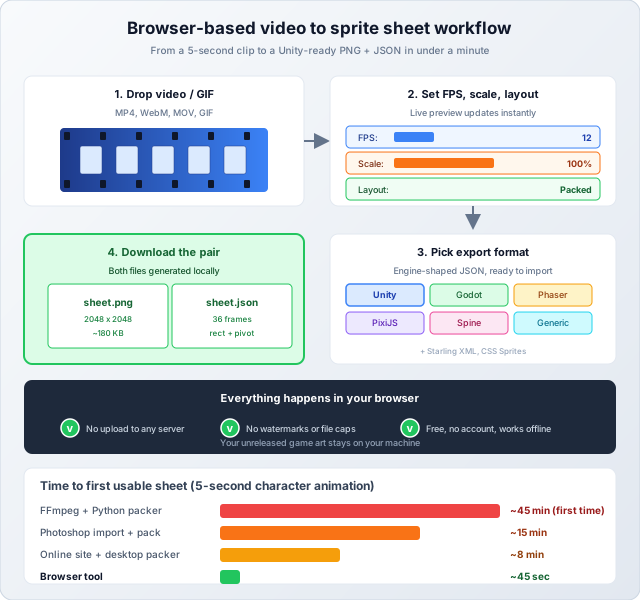
What the tool actually does
- Reads MP4, WebM, MOV, and GIF directly in the browser using native decode APIs.
- Live preview updates as you change FPS, scale, max frame count, and padding — so you can see exactly what the sheet will look like before exporting.
- Multiple layouts: Packed (best space efficiency, MaxRects algorithm), Row (single strip), or Grid (fixed columns).
- Engine-shaped JSON exports: Unity, Godot, Phaser, PixiJS, Spine, Starling XML, generic JSON, or CSS sprites — pick the one your project uses and skip writing any conversion code.
- Power-of-two output when you need it for older mobile devices or stricter engines.
- Multi-sheet output when frame counts exceed your max texture size — the metadata correctly references each sheet.
How to Pick FPS (the Single Most Important Setting)
This decision matters more than any other. Choose too high and your sheet is huge with frames the engine never plays. Choose too low and the animation looks choppy.
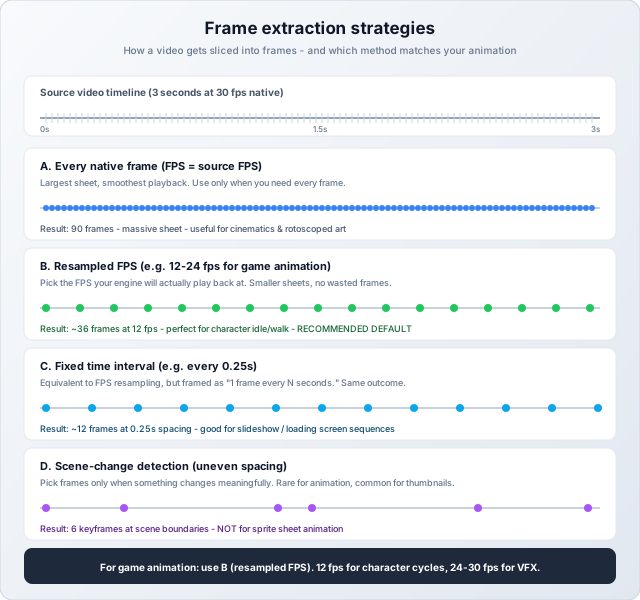
FPS quick reference
- Character idle / walk / run cycles: 8-12 FPS. Hand-drawn animation traditionally uses 12 FPS; many indie games use 8 for a snappier, retro feel.
- Combat and attack animations: 12-15 FPS. Higher than walks because impact frames need precision.
- VFX and particles: 24-30 FPS. Smoothness matters more, and these usually loop quickly so frame count stays bounded.
- UI animations: 24-30 FPS. Same reason as VFX — smoothness reads as polish.
- Cinematics with full-frame motion: match the source (24 or 30). Anything less will visibly stutter.
Best practice: the FPS you set in the export tool should match the FPS you set in the engine animation clip. If they disagree, your animation plays at the wrong speed. We covered this matching in detail in How to Create Unity-Ready Sprite Sheets from Video.
Layout: Packed, Row, or Grid?
Once frames are extracted, they have to be placed on the sheet. The three options each suit a different situation:
- Packed (MaxRects): the smallest possible sheet for mixed-size frames. Use when frames vary in trimmed size or when you are tight on texture memory.
- Row (strip): a single strip of frames, all the same height. Easy to read in some engines, but wastes space when frames are tall.
- Grid: uniform columns and rows. Required by some engines (especially older or grid-only ones) where the runtime computes UVs from a cell index. Wastes space when frames have transparent edges, but the metadata is simpler.
For most game animation we recommend Packed unless your engine specifically needs a grid. The Texture Atlas Packing post covers the algorithm tradeoffs in more depth.
Export Format: Match Your Engine
This is the step that traditional methods leave entirely up to you. Our tool lets you pick:
- Unity: JSON shape compatible with the SpriteMetaData import pattern. Pair with a small editor script that reads the JSON and slices the texture.
- Godot: Format that maps cleanly to AtlasTexture regions, ready to wire into a SpriteFrames resource.
- Phaser: JSON the Phaser 3 loader's
atlas()reads natively. - PixiJS: The standard PixiJS spritesheet format.
- Spine: For Spine-driven animation pipelines.
- Generic JSON / Starling XML / CSS Sprites: for everything else.
Best practice: always pick the engine-specific format if your engine is in the list. Generic JSON is a fine fallback but means you write your own loader.
Common Pitfalls (Even With a Good Tool)
- Source FPS mismatch. If your source clip is 60 FPS and you export at 60, you usually have 4-5x more frames than you need. Resample to 12-24 first; only keep every native frame for cinematic motion.
- Forgetting alpha. If your video does not have alpha (most MP4s do not), the exported sheet will have whatever background color the video had — usually black or white. Use a video format with alpha (WebM with VP9, ProRes 4444, or PNG sequence) for transparent character work.
- Trim disabled when you wanted it on. Trimming removes transparent borders from each frame, which packs tighter but breaks engines that expect uniform-cell grids. Choose deliberately.
- Power-of-two not enforced. Older mobile devices and some engines require sheets at 1024, 2048, 4096, etc. Enable power-of-two output for those targets.
- Sheet too big for the device. 8192×8192 will silently downsample on devices with a 2048 max. If targeting mobile, cap at 2048 (or 4096 for modern devices) and let the tool produce multi-sheet output if needed.
- FPS in the engine animation clip set wrong. The export FPS only describes how the sheet was sampled. Your engine's animation clip needs the same FPS to play back at correct speed.
Honest Limitations
The browser-based approach is the right default for the vast majority of cases, but it has limits worth being upfront about:
- Very long videos. Browser memory is finite. Multi-minute clips may need to be trimmed first or processed in chunks. For animation work this is rarely an issue (most clips are seconds long); for processing a full cinematic, a server-side pipeline is more robust.
- Codec coverage. The browser supports the codecs Chrome, Firefox, or Safari support. Exotic codecs (some flavors of ProRes, certain RAW formats) may need pre-conversion to MP4 or WebM first. The good news: virtually every modern source can be re-encoded losslessly to WebM in seconds, also via FFmpeg if you must.
- No batch automation. A browser tool is interactive by design. If you have a build pipeline that needs to convert hundreds of clips unattended overnight, a scripted pipeline is the right answer for that specific job.
For interactive game development — an artist iterating on a character animation, an engineer prototyping a UI effect, a designer turning a captured screen recording into a tutorial sprite — the browser tool wins on every dimension that matters: speed, privacy, no install, no subscription, engine-aware export.
Wrapping Up
Video-to-sprite-sheet conversion looks simple and is not. Every traditional method has a tax: FFmpeg's flag complexity, Photoshop's price tag and slowness, desktop apps' two-step workflow, custom scripts' maintenance burden, online sites' privacy hole. The pain is not in any single step — it is in stitching extract, pack, and export together with whatever tools each can be persuaded to do its part with.
The browser-based Video to Sprite Sheet tool collapses the whole loop into one page: drop your clip, set FPS and scale, pick your engine's format, download. No upload. No watermarks. No subscriptions. No FFmpeg flags to remember. Try it on your next animation and see how much of the friction was self-imposed.