
Texture Atlases for Mobile Games: A Practical Guide for Godot and Cocos Creator
Mobile 2D games live or die on draw calls and VRAM. This guide explains why atlases matter on phones, how to pack them with MaxRects in a browser tool, and exactly how to wire the output into Godot 4 and Cocos Creator 3.x for iOS and Android.
If you ship a 2D mobile game in Godot or Cocos Creator with dozens of loose PNGs, you are probably paying for it twice: once in draw calls on the CPU, and again in texture memory on the GPU. We have profiled enough mid-range Android sessions to know the pattern — un-atlased scenes spike to 60+ draw calls, thermals climb within ten minutes, and frame pacing wobbles even when the art itself is fine. Atlasing is the fix, but the hard part is rarely whether to atlas. It is packing correctly, staying under mobile texture limits, and wiring the result into an engine without breaking batching. This guide covers all three, anchored on Godot 4 and Cocos Creator 3.x for iOS and Android, and shows how the browser-based Images to Atlas tool fits into a repeatable mobile pipeline.
Why Mobile 2D Games Need Atlases More Than Desktop
Desktop GPUs forgive texture binds. Mobile tile-based GPUs and shared CPU/GPU memory do not. Every unique texture in a frame can force a state change: bind texture, flush batch, draw. In Godot 4, CanvasItems that share the same Texture2D and material batch together; swap to a different texture and the batch breaks. In Cocos Creator 3.x, the dynamic batching system merges draw calls when sprites reference the same underlying texture asset — typically through a SpriteAtlas or shared Texture2D with SpriteFrame rects.
The performance win is not theoretical. In one of our internal Godot mobile test scenes — a side-scroller with UI, three enemy types, and particle-style VFX — moving from 74 loose PNGs to three atlases (UI, characters, environment) dropped draw calls from 68 to 14 and cut CPU rendering time by roughly 4× on a Snapdragon 700-class device. Same shaders, same node tree, same art. The only change was how textures were organized.
VRAM matters equally. Eighty separate 256×256 RGBA textures is not "small" — it is potentially tens of megabytes of GPU-resident data before compression, plus driver overhead for managing many small allocations. Three well-packed 2048 atlases, compressed to ETC2 or ASTC at import/build time, usually occupy less total memory and draw faster because the engine touches fewer unique GPU resources per frame.
What the Images to Atlas Tool Actually Does
The Images to Atlas page is a browser-based texture atlas packer. You drop multiple images (PNG, JPEG, WebP, GIF), configure packing options, preview the result, and export a PNG plus engine-shaped metadata. Everything runs locally — no upload, no account, no watermarks. That matters for mobile teams holding pre-release art who cannot send assets to a third-party server.
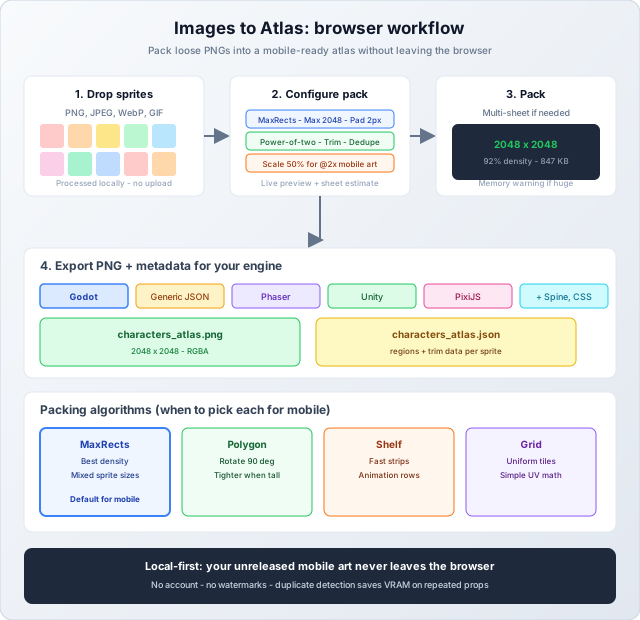
Features that matter for mobile specifically
- MaxRects packing (default): Best density for mixed-size sprites — characters, UI icons, and props in one sheet without wasting half the texture on empty space.
- Polygon mode: MaxRects with 90° rotation for tighter packs when you have tall strips (animation rows) mixed with square icons.
- Max size presets (256–8192): Cap output at 2048 for mobile; the tool estimates sheet breakdown before you pack so you know if you need a second atlas.
- Padding and extrude sliders: 1–2 px padding prevents bleed when the GPU samples at fractional UVs; extrude helps if you use linear filtering on scaled sprites.
- Power-of-two toggle: Rounds atlas dimensions to 256, 512, 1024, 2048, etc. Still relevant for older GLES devices and some compression paths.
- Trim transparent: Removes empty borders per sprite for denser packs. Turn off for uniform tile grids; turn on for characters and UI.
- Detect duplicates: Packs identical sprites once and writes alias entries in metadata — useful for repeated props, coins, and tile variants.
- Scale export: Pack at 50%, 100%, 200%, etc. Match your authoring resolution to your in-engine display scale.
- Multi-sheet output: When frames exceed max size, the tool splits into multiple atlases and exports metadata per sheet.
- Export formats: Generic JSON, Unity, Godot, Phaser, PixiJS, Spine, Starling XML, CSS Sprites.
We covered algorithm tradeoffs in depth in Texture Atlas Packing: MaxRects vs Grid vs Shelf. For mobile, MaxRects is the default unless you have a uniform tile grid (use Grid) or need the fastest possible pack in a build loop (use Shelf).
Mobile Atlas Size and Memory Budget
The wrong atlas size is one of the most common mobile mistakes we see: one giant 4096×4096 sheet holding everything, resident in memory for the entire game, when the current level only needs a subset. Mobile atlasing is as much about how many atlases you load as how big each one is.
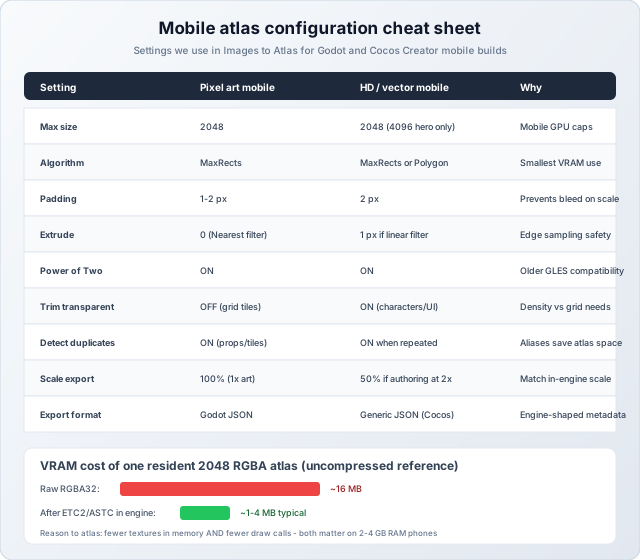
Size guidelines we use on real projects
- 1024 atlases: UI-only sheets, small prop sets, pixel art games targeting low-end Android.
- 2048 atlases: Default for character + environment art on mid-range phones. Most of our Godot and Cocos mobile projects live here.
- 4096 atlases: Hero art only — full-screen backgrounds, large tile sets — and only on devices you have verified support 4096 max texture size. Many budget phones silently downsample 4096 textures, which looks blurry.
- Multiple atlases beats one huge atlas: Load
level_01_env_atlas.pngwith the level, unload when leaving. Keepui_atlas.pngresident. This keeps peak VRAM predictable.
Raw RGBA32 VRAM for a 2048×2048 atlas is about 16 MB. After ETC2/ASTC compression at engine import or build time, expect roughly 1–4 MB depending on format and content. That is why atlasing helps memory: one compressed 2048 sheet often replaces dozens of smaller uncompressed textures that each carry their own allocation overhead.
Godot 4: Mobile Atlas Workflow
Godot is where our tool's native export format shines. Choosing Godot in the export panel produces JSON with a textures array: each entry has the image path, atlas size, and a sprites list with filename and region (x, y, w, h). That maps directly to AtlasTexture regions on a single imported Texture2D.
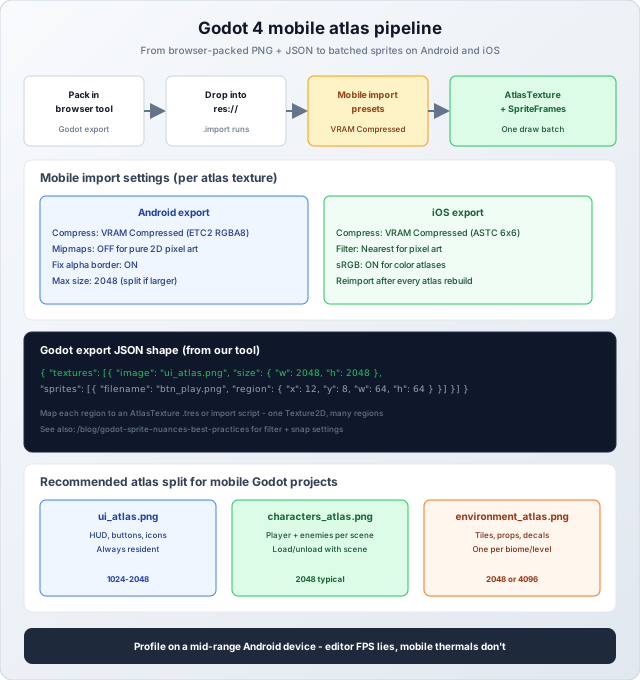
Step-by-step for Godot mobile
- Pack sprites in Images to Atlas with Max Size 2048, Padding 2, Power-of-Two ON, Trim ON for characters/UI. Export format: Godot.
- Drop
characters_atlas.pngandcharacters_atlas.jsonintores://art/. Godot creates the.importfile — commit both to git. - Select the PNG in the Import dock. For Android export: Compress Mode = VRAM Compressed (ETC2 RGBA8). For iOS: ASTC 6×6. Disable mipmaps for pure 2D pixel art. Enable Fix Alpha Border for transparent sprites. Click Reimport.
- Write or reuse a small import script that reads the JSON and creates
AtlasTextureresources (one per sprite region) pointing at the main texture. Alternatively, map regions manually for small sets. - Build
SpriteFramesforAnimatedSprite2Dfrom those AtlasTextures. Match animation FPS to your export FPS if frames came from a video pipeline. - Set texture filter to Nearest for pixel art (Project Settings + per-node override). Enable snap transforms for pixel art — see Godot sprite nuances guide.
- Profile on a real Android device via Godot's remote debugger. Editor FPS is not representative of mobile batching behavior.
Godot mobile pitfalls
- Using Sprite2D.region_rect instead of AtlasTexture: Works visually, but regions live in scene files and do not reuse cleanly. Prefer AtlasTexture .tres for anything shared across scenes.
- Mixing atlases and loose textures in one scene: Every loose texture is a potential batch break. Atlas everything that appears together frequently.
- Forgetting to reimport after re-packing: Godot caches compressed GPU data from the import step. After you replace the PNG, reimport before testing on device.
- One 4096 atlas "because it fits": Even if MaxRects packs it, loading a 4096 sheet on a 2 GB RAM phone can cause memory pressure. Split by logical group.
Cocos Creator 3.x: Mobile Atlas Workflow
Cocos Creator has a built-in Auto Atlas feature that packs sprites inside the editor. That works for small projects, but we prefer external packing for teams where artists iterate outside Cocos — the browser tool lets them pack and hand off PNG + JSON without opening the editor, and MaxRects gives tighter control over padding, rotation, and duplicate detection than the editor's default pack in many cases.
Our tool does not ship a Cocos-specific export format today. Use Generic JSON — it includes per-frame rects, trim data, and rotation flags in a structure compatible with Cocos SpriteFrame slicing. You then create a SpriteAtlas asset in Cocos that references the packed PNG and assign SpriteFrames from the rect data.
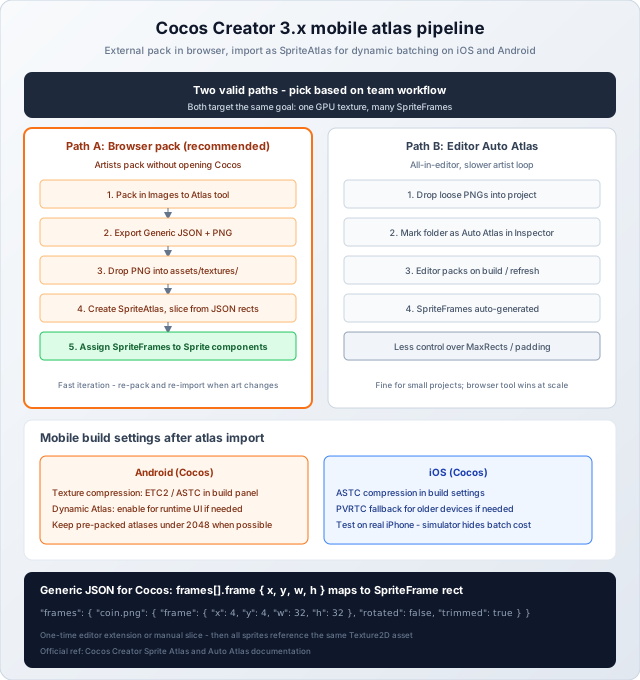
Step-by-step for Cocos Creator mobile (browser pack path)
- Pack in Images to Atlas. Export format: Generic JSON. Download PNG + JSON.
- Import the PNG into your Cocos project under
assets/textures/(or your team's art folder). - Create a SpriteAtlas asset referencing the texture. For each frame in the JSON, define a SpriteFrame with the rect from
frame.x,frame.y,frame.w,frame.h. A one-time editor extension script can automate this from Generic JSON if you pack frequently. - Assign SpriteFrames to
Spritecomponents in your scenes. All sprites from the same atlas batch together when they share material settings. - In Build panel: enable texture compression appropriate for target platform — ETC2 for Android, ASTC for iOS (Cocos build options).
- Test on device. Cocos Creator's simulator does not fully reflect mobile GPU batching and thermal behavior.
When to use Cocos Auto Atlas instead
If your team lives entirely inside Cocos, your sprite count is modest (under ~50 per folder), and you do not need tight MaxRects control, Auto Atlas is fine. Mark a folder as Auto Atlas in the Inspector; the editor packs on refresh/build. The tradeoff is slower artist iteration when packing happens inside the editor, and less visibility into density and sheet size before build.
Cocos mobile pitfalls
- Mixing SpriteAtlas and loose SpriteFrame textures: Same batching issue as Godot — one atlas per logical group.
- Dynamic Atlas at runtime + pre-packed atlas: Cocos can runtime-atlas dynamic UI; pre-packed atlases are for static content. Do not double-atlas the same sprites without understanding load order.
- Ignoring trim data in JSON: Generic JSON includes trim offsets. If you ignore
spriteSourceSizewhen creating SpriteFrames, animations can jitter relative to pivots. - Building without compression on mobile: Uncompressed RGBA atlases blow past mobile memory budgets fast. Always enable platform compression in the build panel.
Organizing Atlases for Mobile Scenes
Both Godot and Cocos benefit from the same organizational principle: atlas by residency, not by file type.
- Always resident: UI atlas (buttons, icons, fonts-as-sprites, HUD elements). Loaded at boot, never unloaded.
- Per scene / level: Character and enemy atlas, environment/tile atlas. Loaded with the scene, freed when leaving.
- Per biome (optional): Large tile sets that only appear in one world. Avoid loading desert tiles during the ice level.
- VFX atlas (optional): Short-lived effects packed separately so you can pool/recycle without pulling character art into memory.
We have seen teams pack "everything into one atlas because MaxRects fit it" and then wonder why level transitions stutter — they were loading 8 MB of GPU data for art that is not on screen. Smaller, scoped atlases with explicit load/unload in Godot (ResourceLoader.load / free) or Cocos (asset bundle / scene lifecycle) keep peak memory flat.
Packing Settings for Common Mobile Content
Pixel art mobile game (Godot or Cocos)
- Algorithm: MaxRects. Max size: 1024 or 2048. Padding: 1 px. Extrude: 0. Trim: OFF if tiles must align to grid; ON for characters.
- Scale: 100% if authoring at 1x; export at 50% only if engine displays at 2× scale.
- Engine filter: Nearest (Godot) / no filtering on pixel art materials (Cocos).
HD vector or painted mobile game
- Algorithm: MaxRects or Polygon. Max size: 2048. Padding: 2 px. Extrude: 1 px if using smooth scaling.
- Trim: ON. Detect duplicates: ON for repeated props.
- Compression: ASTC 6×6 (iOS), ETC2 RGBA8 (Android) at import/build.
UI-only atlas (both engines)
- Max size: 1024 is often enough. Keep UI separate from gameplay art so UI stays resident without dragging level textures into memory.
- Export Godot format for Godot projects; Generic JSON for Cocos.
How This Connects to Other Tools on the Site
Mobile pipelines rarely start with loose character PNGs. Common paths we see:
- Video/GIF animations → sprite sheet: Use Video to Sprite Sheet first, then pack frames into an atlas with Images to Atlas if you have multiple animations on one sheet.
- Splitting an existing sheet: Use Sprite Sheet Splitter to extract frames, edit, then re-pack.
- Multi-resolution builds: Use Sprite Resizer for 1x/2x sets before atlasing, or set Scale in the atlas tool directly.
- Compression before commit: Use Image Compressor on source PNGs for repo size; engine import still handles GPU compression separately — see Image Compression for Games.
Common Pitfalls (Even With a Good Atlas Pipeline)
- Atlasing without profiling: Atlases fix texture-bind overhead, not shader cost or overdraw. Profile first; atlas second.
- Padding too low: 0 px padding on filtered sprites causes visible bleed between adjacent frames. Use at least 1 px; 2 px for HD art.
- Ignoring rotation in metadata: Polygon/MaxRects rotation flags must be respected when creating AtlasTexture or SpriteFrame rects. Ignoring rotation flips frames sideways.
- Re-packing without updating metadata: If you change the atlas layout, regenerate JSON and reimport. Stale rects produce garbage sprites silently.
- One export format for the wrong engine: Godot JSON and Generic JSON are not interchangeable without adaptation. Pick the format your engine expects.
Honest Limitations
- No native Cocos Creator export format yet. Generic JSON works; a dedicated Cocos export may come later. Auto Atlas inside Cocos remains an alternative.
- Browser memory ceiling. Packing thousands of large source images can hit browser memory limits. For massive tile sets, consider splitting source folders and packing in batches.
- No runtime atlasing. This tool produces static atlases for import. Runtime dynamic atlasing (Godot's optional features, Cocos Dynamic Atlas) is a separate concern.
- Compression happens in the engine, not the tool. The PNG export is lossless RGBA. ETC2/ASTC/PVRTC conversion is always your Godot import preset or Cocos build step — by design, so you control quality per platform.
Best Practices Checklist
- Pack with MaxRects at 2048 max for mid-range mobile; split into UI / characters / environment atlases.
- Use 2 px padding, power-of-two ON, trim ON for non-grid content, duplicate detection ON for repeated props.
- Godot: export Godot JSON, import with VRAM compression, map to AtlasTexture + SpriteFrames.
- Cocos: export Generic JSON, create SpriteAtlas, assign SpriteFrames, enable ETC2/ASTC in build.
- Load atlases with scenes; keep UI atlas resident; unload level atlases on transition.
- Profile draw calls and memory on a real mid-range Android device before shipping.
Wrapping Up
Texture atlases are not optional polish for mobile 2D — they are how you keep draw calls and VRAM under control on hardware that cannot afford to bind a new texture every sprite. Godot and Cocos Creator both batch aggressively when sprites share one GPU texture; the job of the atlas pipeline is to get your art into that shape without manual rectangle math in Photoshop.
The Images to Atlas tool handles the mechanical part: MaxRects packing, padding, duplicate detection, multi-sheet splits, and engine-shaped export — locally in your browser, in under a minute per atlas. Wire the output into Godot with native JSON and AtlasTextures, or into Cocos with Generic JSON and SpriteAtlas assets, compress at import/build for mobile, and profile on real hardware. Same art, same game — just organized the way mobile GPUs expect.