
How to Remove AI Image Metadata: Prompts, EXIF & Workflow Data
Clean embedded prompts, workflow JSON and EXIF from PNG, JPEG and WebP images. A local workflow, visual checklist, and clear explanation of what metadata removal changes.
To remove embedded AI prompts or photo metadata, open the AI Image Metadata Remover, add a still PNG, JPEG, or WebP image, and download the cleaned PNG. Processing happens in your browser: the tool rebuilds the image from its decoded pixels rather than copying the original file container.
This removes source text, workflow records, and EXIF from the exported file. It does not erase visible watermarks or establish whether an image was created by AI. Keep the original if you want to preserve generation settings, color profiles, or editing history.
What can be hidden in an image file?
An image file contains both the data needed to display its pixels and, sometimes, extra records. A saved AI image might include a prompt, generation settings, or workflow JSON. A photo might contain camera details, capture time, orientation, or GPS coordinates. Which records are present depends on the application and export settings; not every image contains them.
The formats store these records differently. PNG supports textual chunks, while WebP can carry EXIF and XMP chunks. See the PNG specification and WebP container documentation for the file structures. Our cleaner does not need to recognize a particular generator to omit its embedded records.
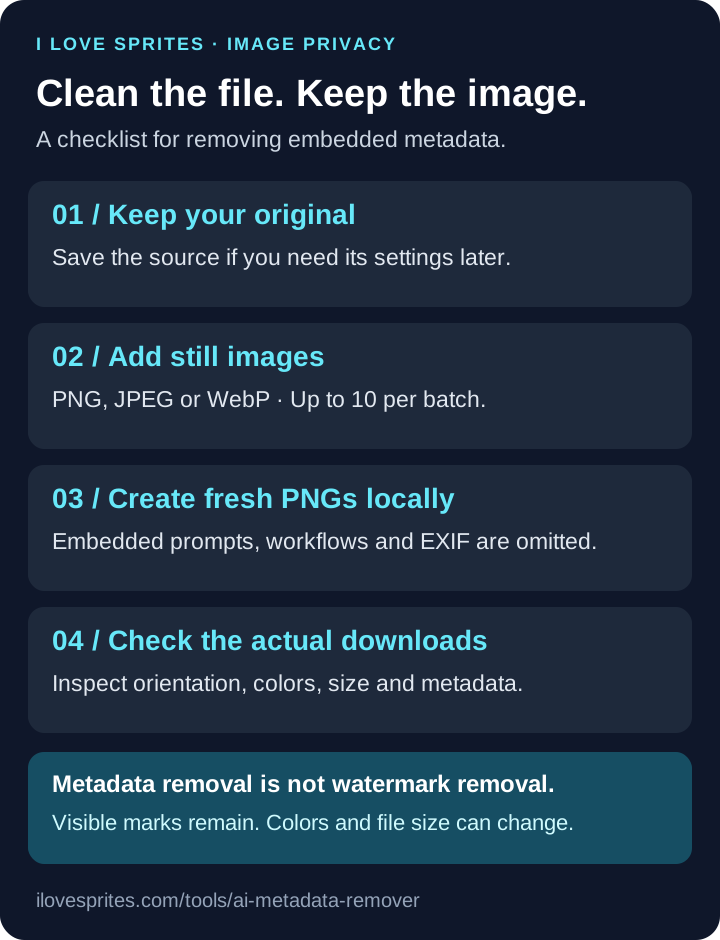
Clean one image or a batch
- Keep an original copy. Use the cleaned export for sharing, while retaining the source if you need to reproduce or edit the work.
- Add your images. The free image metadata cleaner accepts up to 10 still images per batch, 25 MB per file, 20 megapixels, and 8192 pixels per side.
- Check the result cards. Each successful image shows a preview, dimensions, and source/output file sizes. Animated PNG and WebP are rejected rather than flattened into a single frame.
- Download PNGs or a ZIP. Files are given distinct output names so duplicate source names do not overwrite one another inside the batch archive.
The tool does not upload your images or embedded records for processing. Loading the website and its normal analytics still involves network requests. Local image processing and an entirely offline website are different things.
What happens to Stable Diffusion prompts and ComfyUI workflows?
If a prompt or workflow is stored as embedded metadata, it is not copied into the fresh PNG. This applies to source text and workflow records regardless of the application that wrote them. The tool does not need to extract, display, or classify the prompt first.
Text drawn directly into the image is different: it is part of the pixels and stays in the output. A screenshot of a workflow therefore still shows that workflow. Likewise, external project files or sidecar files are separate from the uploaded image and are not changed.
What changes besides metadata?
Every output is a PNG, including JPEG and WebP inputs. The decoded image dimensions and transparency are retained, and the browser applies image orientation before export. PNG encoding adds no further lossy compression, but decoding, bit-depth conversion, and color conversion can change pixel values. Original color profiles are not retained.
A JPEG photograph may become a substantially larger PNG. Metadata removal is therefore not a file-compression feature. If size matters, use the image compressor as part of your workflow and inspect the final file you actually plan to share. Re-exporting an image in another application can introduce fresh metadata.
How we checked the cleaner
On November 2, 2026, our local checks used PNG fixtures containing plain text, international text, compressed text, an extra container chunk, and trailing data. JPEG and WebP fixtures included EXIF. Browser checks verified that the exported PNGs contained only image and transparency chunks, and that the source test text and EXIF were absent.
The same checks covered a rotated JPEG, transparency, duplicate filenames in a ZIP, and rejected animated or damaged inputs. These are checks of controlled fixtures, not a claim to have tested every camera, generator, or browser. Our About page explains the team's approach to reproducible examples.
Check the actual download before sharing
- Open the downloaded file and check orientation, transparency, colors, and dimensions.
- Inspect that downloaded file with a metadata viewer that understands its format. Do not inspect the original by mistake.
- Distinguish embedded records from file-system information such as a filename or the date your computer saved the download. Those can still exist.
- If you edit or re-export the file afterward, repeat the check on the final export.
Removing metadata does not remove visible watermarks, signals encoded in the pixels, or information outside the file. It also does not prove an image's origin. For the narrower task of omitting embedded prompts, workflow records, and private photo tags, clean your images locally here.