

How to Remove Video Metadata from MP4, MOV & WebM
Remove standard video metadata without re-encoding. Watch a 42-second explainer, follow visual checklists, and learn what stays in your cleaned video.
On this page6 sections
To remove standard metadata tags from an MP4, MOV, or WebM video, open the video metadata remover, select your file, and choose Remove video metadata. The tool writes a new container while copying the main video and compatible audio without re-encoding them.
This is useful when you want to omit source titles, comments, author fields, or generation details stored in standard tags. It is not a guarantee that every piece of identifying information disappears: visible watermarks, encoded signals, side data, and some technical fields can remain.
What is video metadata?
A video file combines encoded media with a container that describes how to store and play it. That container can also carry tags such as a title, comment, author, or creation time. Some applications store generator names or prompt text in those tags. Others put information elsewhere, so the same cleaning method cannot guarantee identical results for every generator.
Metadata is also different from extra tracks. A file may contain subtitles, chapters, a cover image, additional video tracks, or other data. This tool deliberately selects the first non-cover-art video track and compatible audio tracks; it does not preserve all of those extras. Keep the original if you might need them later.
Follow the four-step workflow
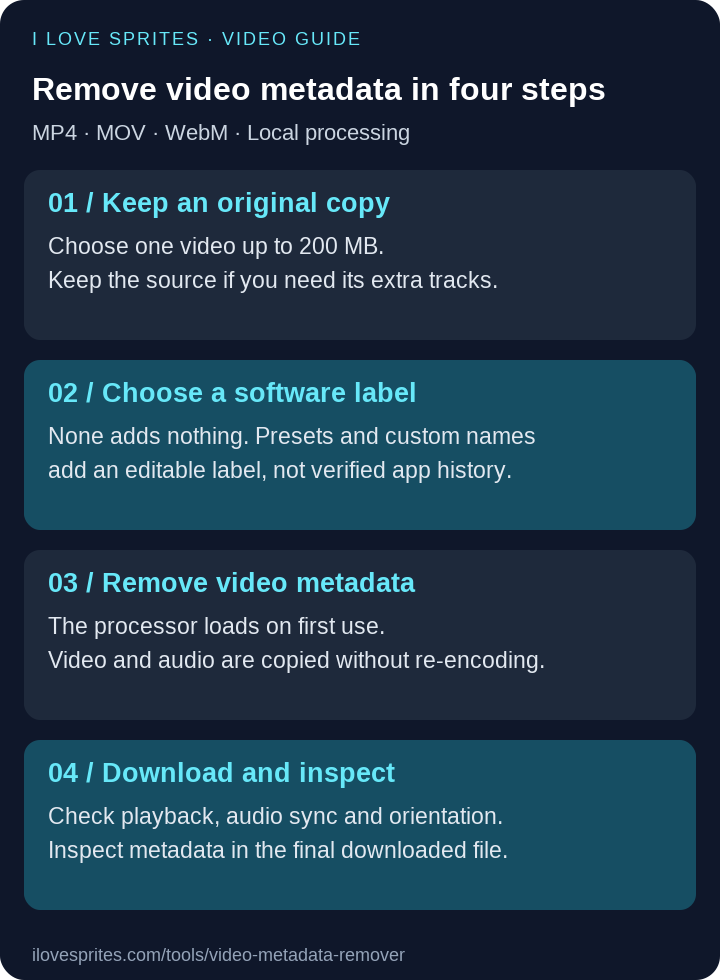
- Keep an original copy. Choose one MP4, MOV, or WebM video up to 200 MB. The tool does not overwrite the source file.
- Choose the optional software label. Leave it at None to add nothing, or choose Photoshop, Canva, Premiere Pro, or a custom name.
- Start cleaning. The first run downloads the video processor. Your selected video is processed on your device rather than uploaded for cleaning.
- Preview and download. Check playback, audio sync, and orientation. If the browser cannot preview the codec, download the result and use a compatible player.
The file extension alone does not guarantee codec support. Two MP4 files can use different video or audio encodings. An unsupported or damaged file may fail to remux; the tool shows an error rather than silently switching to a lossy conversion.
What stays, what is removed, and what may remain
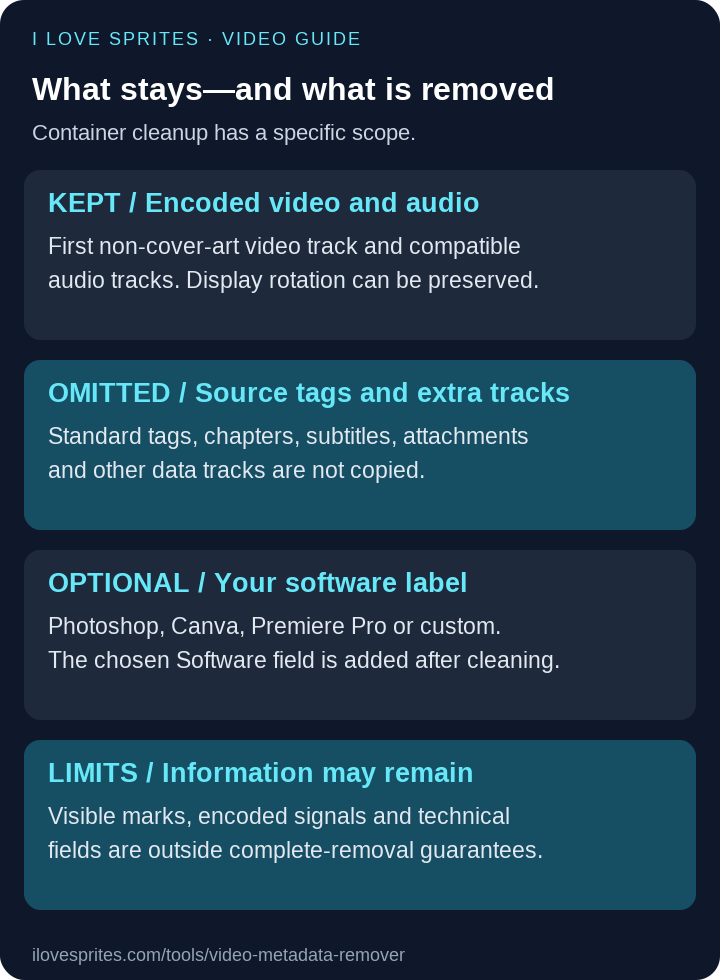
Kept: the selected encoded video and audio packets. Omitted: standard copied source tags, chapters, subtitles, attachments, and other unselected tracks. Potentially retained or regenerated: codec identifiers, dimensions, duration, display information, muxer fields, and information inside the encoded media.
For example, removing a creation-time tag does not remove a date visibly printed into a frame. Similarly, a generator name inside a standard comment tag can be omitted, while a signal encoded in the pixels or audio is outside this tool's removal guarantee.
Will removing metadata reduce video quality?
This workflow copies encoded media packets instead of decoding and recompressing them. That avoids another lossy compression pass. It is a container operation, not a video enhancement or compression feature. The new file can have a different size because its tags, indexes, and extra tracks differ.
Container timing and structure can change during remuxing, so check audio sync and playback even when the encoded media is unchanged. In our November 11 checks, tagged MP4, MOV, and WebM fixtures were processed both natively and through the browser. The outputs omitted the tested source tags and chapters, and their video/audio packet hashes matched the inputs. We also checked display rotation in a rotated MP4, a silent video, and damaged input handling. Those checks cover the fixtures, not every possible camera or codec.
What does the Photoshop, Canva, or Premiere Pro label do?
The optional setting adds a new Software field after cleaning. It is text you choose, not verified application history or a signed provenance record. Selecting Premiere Pro does not convert the video into a Premiere project or prove that the footage was edited there.
Changing this setting clears the previous video result so you can regenerate it with the intended label. If your goal is to omit source tags without adding a new software name, leave the setting at None.
Check the final file, not just the preview
- Play the downloaded video and listen for sync problems.
- Check its orientation and any audio tracks you need.
- Inspect the actual download in a metadata viewer that understands its container.
- Expect necessary playback fields and possibly muxer-generated technical tags to remain.
- If another editor re-exports the video afterward, inspect that final export again: it can add new tags.
If you only need a shorter clip, use the video trimmer first. For a smaller file, use the video compressor and then clean the export you intend to share. These are separate tasks with different effects on the media.
Ready to try it? Open the MP4, MOV, and WebM metadata cleaner. For still images, use the image metadata remover or read our image metadata removal guide.